
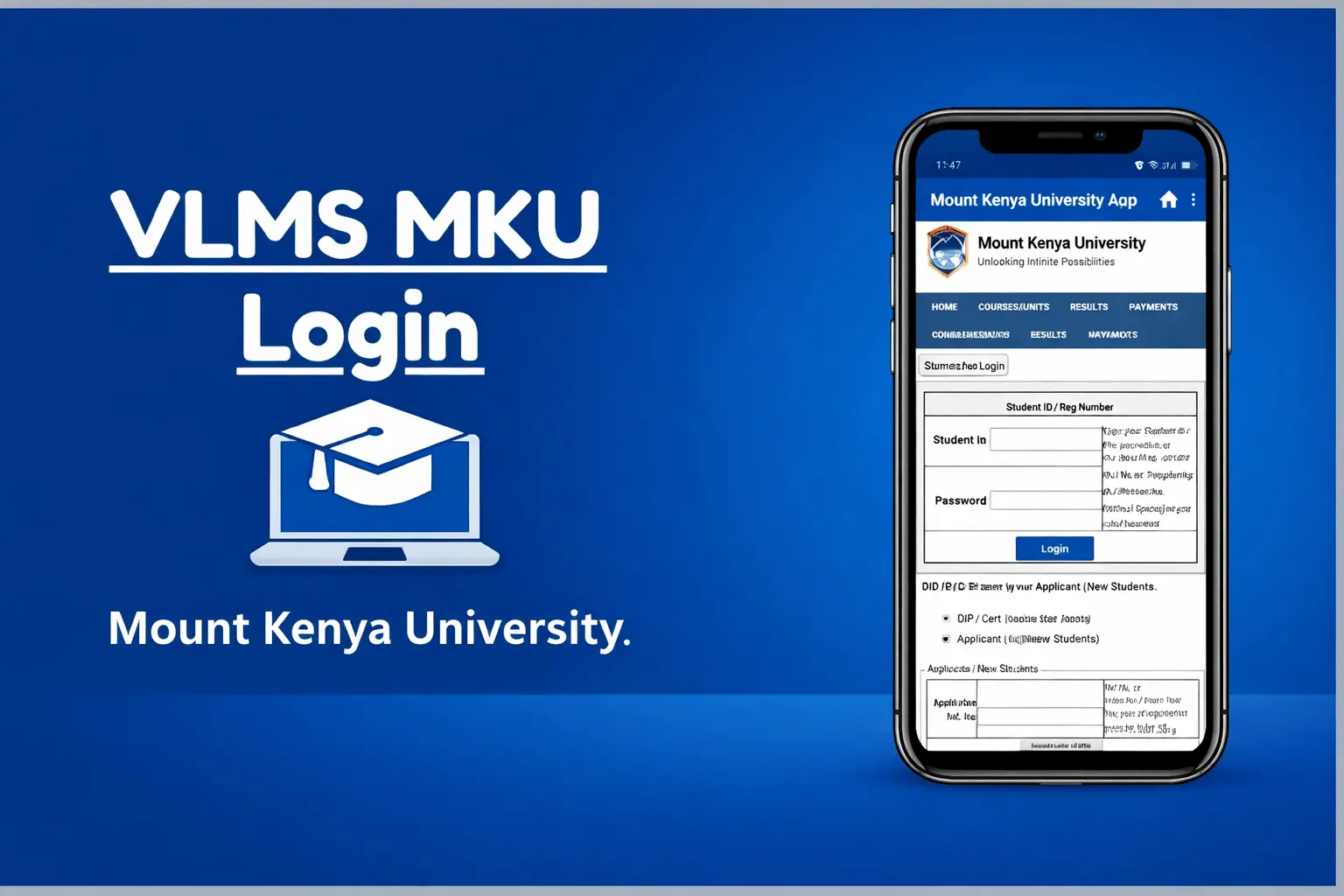
VLMS MKU AC KE Login – Complete Guide for MKU Students
If you are a student at Mount Kenya University, chances are you have already heard about the VLMS portal or you are being asked to log in for the first time. For many new and continuing students, especially distance learners, VLMS MKU AC ke login can feel confusing at the beginning.
This guide is written to help you understand the VLMS system clearly, log in without stress, and fix common problems that students usually face. Everything is explained step by step, in simple language, just like one student helping another.
What Is VLMS MKU AC?
VLMS stands for Virtual Learning Management System. It is the official online learning platform used by Mount Kenya University to support teaching and learning.
The VLMS MKU AC portal allows students to:
- Access their course materials online
- Download lecture notes and reading resources
- Submit assignments
- View announcements from lecturers
- Take online assessments (where applicable)
For distance learning and blended learning students, VLMS is especially important because most academic activities happen through this system. Even for regular students, VLMS is used to support coursework outside the classroom.
Why MKU Students Use the VLMS Portal
MKU uses the VLMS portal to make learning more flexible and organized. Instead of depending only on physical handouts or notice boards, students can access academic content anytime and from anywhere.
Students use VLMS MKU AC for:
- Keeping track of their registered units
- Downloading updated course materials
- Checking assignment instructions and deadlines
- Communicating important academic updates
Because of this, being able to log in successfully is essential for every MKU student.
Requirements for VLMS MKU AC Login
Before you try to log in, make sure you have the following ready. Most login issues happen because one of these is missing or incorrect.
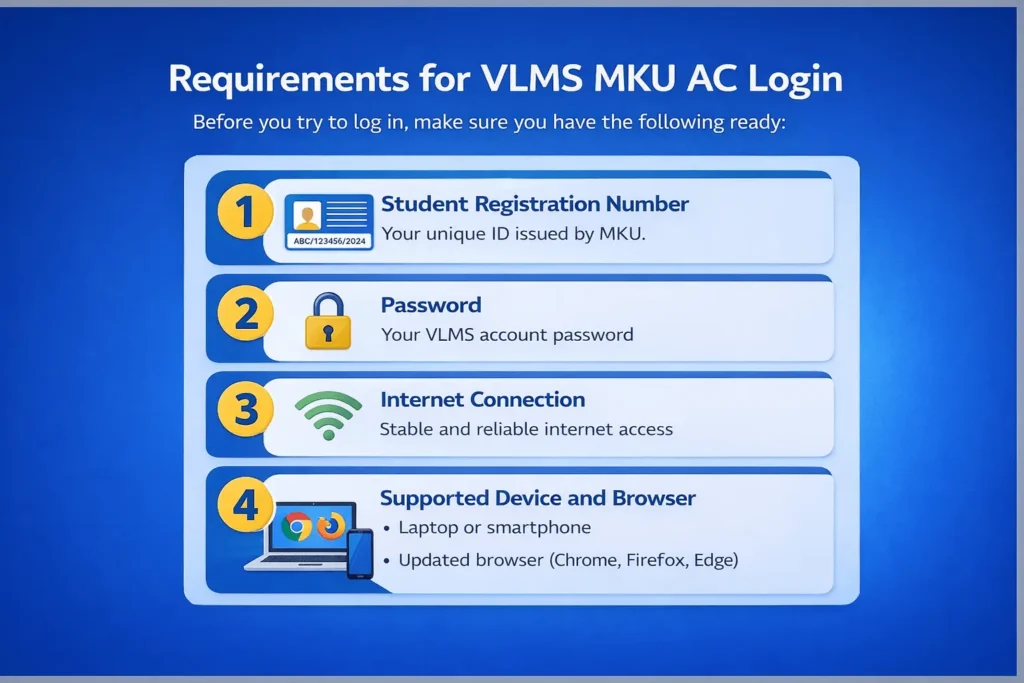
1. Student Registration Number
This is the registration number issued by MKU after admission. It is usually required as the username or part of the login details.
2. Password
The password is provided by the university or created during your first-time setup. If you are a new student, this may be sent to your registered email or given during orientation.
3. Internet Connection
A stable internet connection is important. VLMS may not load properly on very slow or unstable networks.
4. Supported Device and Browser
You can access VLMS using:
- A laptop or desktop computer
- A smartphone or tablet
For best results, use updated browsers like Google Chrome, Mozilla Firefox, or Microsoft Edge.
Step-by-Step VLMS MKU AC Login Process
If you are logging in for the first time or just want to confirm the correct steps, follow this simple process.
- Open a web browser on your phone or computer.
- In the address bar, type the official VLMS MKU AC portal link provided by the university.
- Wait for the login page to load fully.
- Enter your student registration number in the username field.
- Enter your password carefully, checking for correct spelling and letter case.
- Click the Login button.
- If your details are correct, you will be taken to your VLMS dashboard.
Once logged in, you should see your courses, announcements, and available learning materials.
Common VLMS MKU Login Problems and Solutions
Many students face login issues at some point. Below are the most common problems and practical ways to solve them.
Incorrect Password
This is the most frequent issue.
What to do:
- Make sure Caps Lock is off
- Re-enter the password slowly
- Check if you are using the correct password for VLMS and not another MKU system
If the problem continues, use the password reset option.
Account Not Active
Sometimes new students try to log in before their account is fully activated.
What to do:
- Confirm that your registration has been completed
- Ensure you have registered your units
- Wait for official confirmation from MKU if you are newly admitted
If the delay continues, contact the university support office.
Page Not Loading
The login page may fail to load due to browser or network issues.
What to do:
- Refresh the page
- Switch to a different browser
- Clear browser cache and cookies
- Try a different internet connection
Login Error Messages
You may see messages like “invalid login details” or “access denied”.
What to do:
- Double-check your registration number format
- Ensure there are no extra spaces when typing
- Reset your password if unsure
Mobile vs Desktop Access Issues
VLMS works on both mobile and desktop, but some features may load better on a computer.
What to do:
- If using a phone, try switching to a laptop
- Enable desktop view on your mobile browser
- Ensure your browser is updated
How to Reset VLMS MKU AC Password
If you forget your password, do not panic. Password recovery is a normal process.
Step-by-Step Password Reset
- Go to the VLMS MKU AC login page
- Click on Forgot Password or Reset Password
- Enter your registered email address or student number
- Follow the instructions sent to your email
- Create a new password and save it securely
If Reset Email Does Not Arrive
- Check your spam or junk folder
- Wait a few minutes and refresh your email
- Make sure you used the correct email address
When to Contact MKU Support
Contact MKU support if:
- You no longer have access to your registered email
- The reset link does not work
- Your account remains locked after resetting
What Students Can Access After Login
Once you successfully complete VLMS MKU AC ke login, you gain access to several important academic tools.
Course Materials
Lecturers upload notes, slides, and reading materials for each unit.
Assignments
You can view assignment instructions, submission deadlines, and upload your work directly.
Lectures
Some courses include recorded lectures or additional learning resources.
Notices and Announcements
Important updates from lecturers and departments appear on the dashboard.
Results or Assessments
For some units, quizzes or assessments are done through the VLMS system.
Frequently Asked Questions (FAQ)
How do I get my VLMS MKU login details?
Login details are usually provided after admission or unit registration. Check your registered email or contact MKU support if you did not receive them.
Can I log in to VLMS MKU on my phone?
Yes. You can log in using a smartphone browser. For better experience, ensure a stable internet connection and updated browser.
What should I do if my VLMS account is locked?
Use the password reset option first. If the issue continues, contact the MKU ICT or student support office for assistance.
Is VLMS the same for all MKU students?
Yes, but the courses and materials you see depend on your program and registered units.
Final Thoughts
Understanding how VLMS MKU AC ke login works makes student life much easier, especially for distance and blended learning students. Most login problems are simple and can be fixed by checking details carefully or resetting your password.
If you follow the steps in this guide, you should be able to access your MKU VLMS portal confidently and focus on what matters most—your studies. If problems persist, do not hesitate to reach out to the university support team for help.
This system is there to support your learning, and once you get used to it, it becomes a very useful academic tool.


I’ve tried to log in using correct credentials but if fails
Fair
My vlms is not opening